
How to Use the Xbox Series S
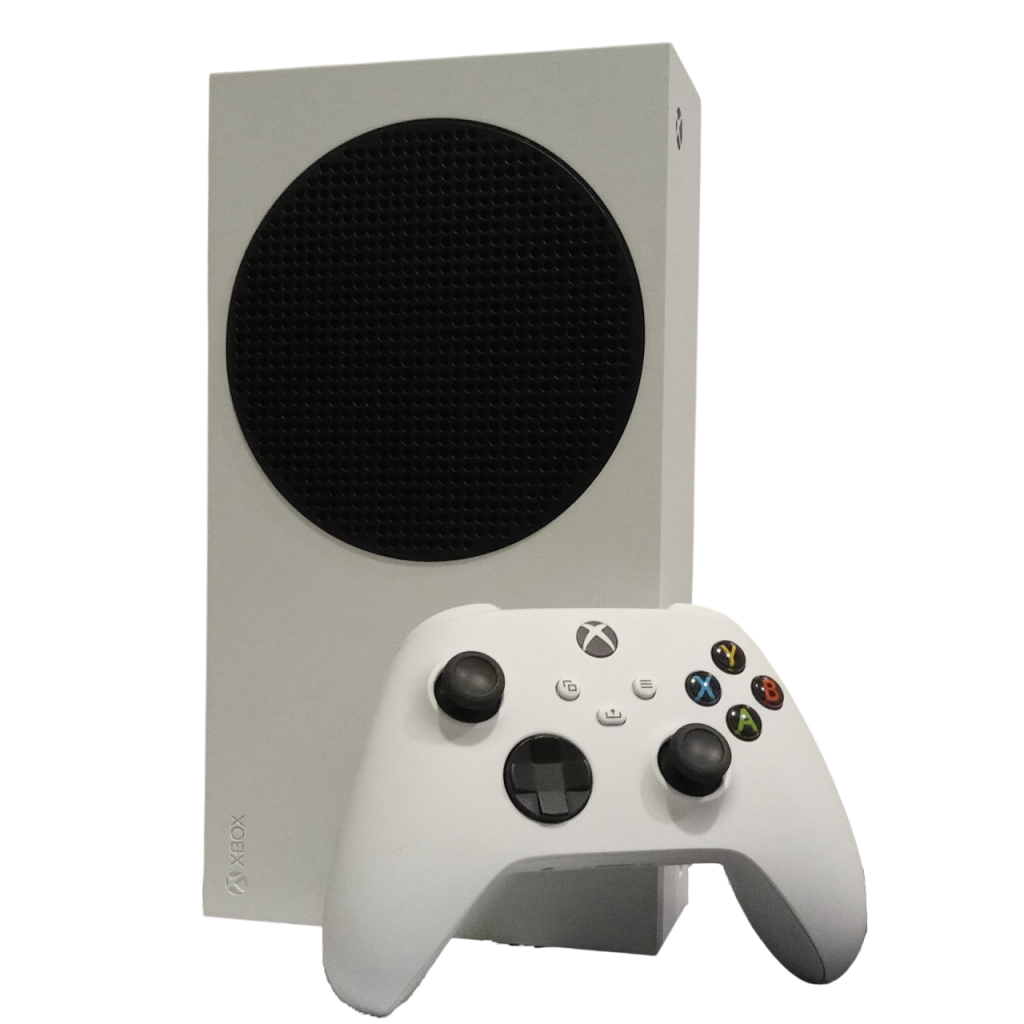
Xbox Series S console in the living room, connected to the TV. A quick guide to get you playing.
Controller at a glance
The wireless controller is your remote for everything. These are the buttons you will use most:
Turning everything on
- Turn on the TV with its remote.
- Press and hold the Xbox button in the middle of the controller. The console wakes up together with the controller.
- If the screen stays blank, switch the TV to the HDMI input the console is plugged into using the TV remote’s Source or Input button.
- Wait a few seconds and the Xbox Home screen appears. You’re ready to play.
You can also start the console by tapping the power button with the Xbox logo on the front of the console itself.
Playing games from your library
- From the Home screen, pick a game from the row of recent titles, or press the Xbox button and open My games & apps, then See all.
- Under Games you’ll find every installed game. Highlight one and press A to play.
- To switch or quit a game: press the Xbox button, highlight the game in the side panel, press Menu and choose Quit.
The Xbox Series S is an all-digital console, so there is no disc slot. Games marked with a download arrow in Full library are owned but not installed yet; see “Installing and removing games” below. The villa’s account includes an annual Game Pass subscription, so the games available are provided by Microsoft’s catalog and the selection may change over time.
Watching Netflix
- From the Home screen open My games & apps, then See all and go to the Apps section.
- Open Netflix. Use the sticks or D-pad to browse, A to select, and B to go back.
- Sign in: pick an existing profile, or sign in with your own Netflix account.
If you sign in with your personal Netflix account, please remember to sign out of it (Netflix > Settings > Sign out) before you check out of the villa.
Installing and removing games
- To install something new, open the Microsoft Store app from Home, press Y to search, and choose the game.
- Select Install or Get only for free titles or games included with Game Pass. Anything with a price would be charged to the villa’s account, so please don’t buy.
- To free up space, open My games & apps > Games, highlight a game, press Menu and choose Uninstall.
Uninstalling never deletes a game from the account, it can always be reinstalled later from Full library. Storage on the Series S is limited, so removing a big game you’re done with is completely fine.
Turning everything off
- Press and hold the Xbox button on the controller until the power menu appears.
- Select Turn console off.
- Turn off the TV with its remote.
The controller switches itself off automatically after a few minutes of inactivity, so you don’t need to do anything with it.
If something isn’t working
| Problem | Try this |
|---|---|
| TV shows no picture | Check the TV is on the correct HDMI input (Source / Input button on the TV remote) |
| Controller doesn’t respond | Press the Xbox button once. If the light doesn’t come on, the AA batteries may be empty; ask Firda for spares |
| Controller lost connection | Tap the small pair button on the front of the console, then hold the pair button on the top edge of the controller until the Xbox button flashes, then release |
| Console frozen | Hold the power button on the front of the console for about 10 seconds to force a restart |
House rules for the console
Please stay signed in to the villa’s Xbox profile and don’t make any purchases from the store. Anything you buy would go to the villa’s account, not yours.
Keep drinks away from the console and controller, leave the vents at the top uncovered, and please don’t move or unplug the console while it’s running.
Need help? Message our host Firda on WhatsApp at +62 856-0794-2392.